
Swisscom FttH (XGS-PON) IPv4 & IPv6 with OpenWRT
[2026.09.29]
Before we start, let’s get ourselves a list of handy documentation pointers:
- Swisscom technical interfaces
- Swisscom settings for external routers
- Swisscom approved equipment list
The key point for using one’s own router, as very concisely expressed in Swisscom external routers document, are:
- using 802.1q VLAN number 10
- setting the DHCPv4 Vendor Class Identifier option (60) to
100008,0001 - setting the DHCPv6 Vendor Class Identifier option (16) to
100008,0001
Layer 1
After struggling for days with the layer 1 - and enriching my vocabulary with quite a few new choice words - I eventually got my OTO plug (Optical Termination Outlet) and my Swisscom FttH (Fiber to the Home) / XGS-PON (10Gbit-capable Symmetric Passive Optical Network) setup ready for prime time, with a nice -14.9dBm optical power reading (well within the required -9 to -28dBm range).
A nice thing to note a this point is the relation between the fiber bend radius and the optical loss, which the very friendly fiber connection technician demonstrated to me: bend the fiber/patch to a radius lower than ~1cm and you start observing significant losses (a 1cm bend radius decreased the optical power reading to lower than -17dB), knowing -20dB is already considered problematic for achieving very high throughput.
Layer 2
Now, given I’m a maniac and I’d rather manage my entire layer 3 using my beloved GL-iNet GL-MT6000 (Flint 2) OpenWRT router instead of allowing Swisscom to sneak around, things got interesting.
So I spent a few bucks on a ZYXEL PM7300-T0 SFU (Single Family Unit; modem) and ditched the exquisitly badly documented Internet Box 5 Swisscom sent me. (before one asks: Yes! That piece of equipment is among the list of Swisscom-approved equipment :-P )
To serve our purpose, the PM7300 ought to be configured with the following settings (using its web UI):
LAN: using the
172.31.255.5/30(netmask255.255.255.252) IPv4 address (rings a bell? That’s the IP address of the “Passthru” port on the Swisscom - Centro Business - stock router!)WAN: using the
Bridgemode, without VLAN (802.1q) and QoS (802.1p)
The points being:
using the
172.31.255.5/30LAN IP address will allow us to migrate as seamlessly as possible from an existing “Passthru” setupnot (un)tagging the VLAN on the PM7300 itself will allow us to niftily separate, from the “LAN” point of view:
the PM7300 management “network”, with no VLAN tagging
the WAN - Internet - “network”, using Swisscom VLAN 10 (as per its documentation)
Preliminary tests
Using a latop connected to the PM7300 Ethernet port, one can verify its configuration using our preferred interface (The CLI!!! What else!?!…):
## ON YOUR LAPTOP

# Add the adequate NetworkManager interface on the laptop
nmcli connection add \
  con-name "ZYXEL-mgmt" \
  type ethernet \
  ifname eth0 \
  ipv4.method manual \
  ipv4.addresses 172.31.255.6/30

# Verify the management interface configuration
ip -4 address show dev eth0
: 5: eth0: <BROADCAST,MULTICAST,UP,LOWER_UP> mtu 1500 qdisc fq_codel state UP group default qlen 1000
:    inet 172.31.255.6/30 brd 172.31.255.7 scope global noprefixroute eth0

# Log into the PM7300 using ssh
ssh admin@172.31.255.5
## ON THE PM7300 MODEM

# Verify the LAN configuration
ZySH> cfg lan get
: Group Name  LAN IP Address  IPv4 DHCP Server  IPv6 Enable  IGMP Snooping
: Default     172.31.255.5    Disable           false        Disabled

# Verify the WAN configuration
ZySH> cfg wan get
: Index  Name  Type  Mode    Encapsulation  802.1p  802.1q  IGMP Proxy  NAT  Default Gateway
: 3      GPON  PON   Bridge  Bridge         N/A     N/A     N           N    N

# Query the system characteristics
ZySH> sys atsh
: Firmware Version        : V5.42(ABYY.4.1)C0
: Bootbase Version        : V1.44 | 09/07/2023 15:30:09
: Vendor Name             : Zyxel Communications Corp.
: Product Model           : PM7300-T0
: Serial Number           : ...
: GPON Serial Number      : ...

# Exit
ZySH> exit
Once the PM7300 hooked on the fiber connection, one can verify the layer 2 works as expected:
## ON YOUR LAPTOP

# Add the adequate NetworkManager connection on the laptop
nmcli connection add \
  con-name "Swisscom-upstream" \
  type vlan id 10 \
  dev eth0 \
  ipv4.method auto \
  ipv4.dhcp-vendor-class-identifier 100008,0001

# Verify the upstream interface configuration
ip -4 address show dev eth0.10
: 7: eth0.10@eth0: <BROADCAST,MULTICAST,UP,LOWER_UP> mtu 1500 qdisc noqueue state UP group default qlen 1000
:    inet 100.85.152.80/21 brd 100.85.159.255 scope global dynamic noprefixroute eth0.10
:         valid_lft 1772sec preferred_lft 1772sec

# Observe we are in a "captive network" which prompts us to activate our connection
# (as we try to reach any site using our web browser)
sudo tcpdump -i eth0.10 -pn -v tcp port 80
: 22:46:54.435830 IP (tos 0x0, ttl 61, id 5267, offset 0, flags [DF], proto TCP (6), length 544)
:   151.101.1.91.80 > 100.85.152.80.46130: Flags [P.]: HTTP, length: 492
:     HTTP/1.1 302 Moved Temporarily
:     Location: https://www.swisscom.ch/splashpage/guest/internet-activation
YIP-PEEH!!! We got ourselves a very good looking CGNAT (Carrier-Grade Network Address Translation) 100.64.0.0/10 IPv4
address, as expected at this point!
Just out of curiosity, let’s find out what the latency of our connection to the Swisscom internal network might be:
## ON YOUR LAPTOP

# Get our local network connection latency
ping -q -c 10 172.31.255.5
: 10 packets transmitted, 10 packets received, 0% packet loss
: rtt min/avg/max/mdev = 0.565/0.759/0.865/0.086 ms

# Get the next-hope router IP address
ip -4 route  | grep '^default .* eth0.10'
: default via 100.85.32.1 dev eth0.10 proto dhcp src 100.85.152.80 metric 400

# Get the XGS-PON connection latency
ping -q -c 10 100.85.32.1
: 10 packets transmitted, 0 received, 100% packet loss
# (NOPE! Swisscom won't let us do that!)
And check the DNS servers which we’re being told to use (we will need those further below):
## ON YOUR LAPTOP

# Get the DNS servers from the resolver (NetworkManager-updated) configuration
grep '^nameserver' /etc/resolv.conf
: nameserver 193.5.23.23
: nameserver 193.247.204.23
When pointing your web browser to https://www.swisscom.ch/splashpage/guest/internet-activation - Firefox will actually invite you to do so automatically - you will get to a very Swisscom-looking captive portal, inviting you to:
- log in using your Swisscom account credentials
- check the available Service Serial Number (drop-down) you want to associate the connection with
!!! DO NOT ACTIVATE YOUR CONNECTION YET !!!
I don’t actually know which of your PON Identifier or Ethernet MAC address Swisscom uses to associate the connection
with your (Internet) Service Serial Number but I very much suspect it’s the latter (currently being the one of the
eth0.10 interface of the laptop, while we’ll want to register the one of the router).
NOTA BENE: no use trying to verify anything IPv6 at this point, given:
- NetworkManager does not support setting the DHCPv6 Vendor Class Identifier (16) option (come on guys, it’s 2026!…)
- I personally doubt it would work before we activate the connection
And before you ask:
## ON YOUR LAPTOP

# Delete the NetworkManager connections
nmcli connection delete "Swisscom-upstream"
nmcli connection delete "ZYXEL-mgmt"
Layer 3
Now that the layer 2 has been verified fully functional, we’re ready to take the greatest leap ever: hooking our OpenWRT (GL-MT6000) router directly to the Swisscom XPS-PON network! YEAH!!!
After connecting the GL-MT6000 wan port to the PM7300 Ethernet port, we’ll need to configure both the MODEM
management and the WAN4/WAN6 Internet interfaces.
For those unconfident people who feel like RTFM (Reading the F…riendly Manual):
- OpenWRT Unified Configuration Interface (UCI)
- OpenWRT network configuration
- OpenWRT DHCP and DNS configuration
- OpenWRT IPv4/DHCPv4 configuration
- OpenWRT IPv6/DHCPv6 configuration
- OpenWRT VLAN configuration
NOTA BENE: We assume the router already has a pre-existing, working WAN/LAN configuration. Snippets below shall only cover the specifics of the PM7300 management and Swisscom Internet connections (on OpenWRT version 25.12).
Preliminaries
Before we carry on configuring the new OpenWRT WAN interfaces, we shall disable the previous ones:
## ON THE OPENWRT ROUTER

# Disable WAN interfaces
ifdown WAN4
ifdown WAN6
Also, after modifying a configuration file, you may want to check it’s still parsable by OpenWRT UCI:
## ON THE OPENWRT ROUTER

# Check configuration
uci show network
uci show firewall
MODEM management interface
We’ll start by creating a dedicated MODEM management interface allowing us to administer the PM7300 from our
Intranet; in OpenWRT /etc/config/network:
config interface 'MODEM'
    option device 'eth1'
    option proto 'static'
    option ipaddr '172.31.255.6'
    option netmask '255.255.255.252'
And in /etc/config/firewall:
config zone
    option name 'MODEM'
    option input 'REJECT'
    option output 'ACCEPT'
    option forward 'REJECT'
    option masq '1'
    list network 'MODEM'

config forwarding
    option src 'INTRANET'
    option dest 'MODEM'
Once configured, we can enable it:
## ON THE OPENWRT ROUTER

# Enable the management interface
ifup MODEM

# Verify the management interface status
ifstatus MODEM
: "ipv4-address": [
:   {
:     "address": "172.31.255.6",
:     "mask": 30
:   }
: ]

# Update the firewall rules
fw4 restart

# Verify the management interface connectivity
ping -q -c 1 172.31.255.5
: 1 packets transmitted, 1 packets received, 0% packet loss
We should now be able to reach the PM7300 - using ping, SSH or its web UI - from anywhere within the internal network.
WAN4 IPv4 Internet interface
We can now configure the WAN4 IPv4 Internet interface, taking care of using the VLAN ID 10 along the
100008,0001 DHCPv4 Vendor Class Identifier option (60); in OpenWRT /etc/config/network
config interface 'WAN4'
    option device 'eth1.10'
    option proto 'dhcp'
    # DHCPv4 Vendor Class Identifier (Swisscom)
    # option sendopts "60:3130303030382c30303031"
    option vendorid '100008,0001'
    option norelease '1'
    # Custom DNS server
    option peerdns '0'
    list dns '9.9.9.9'
    option dns_metric '9994'
Mark the (9.9.9.9, Quad9) DNS server being configured here explicitly, rather than using the ones
advertised by DHCP. In my particular case, this DNS server is only a “fallback”, given I’ve configured my internal
network to use my own internal DNS servers. Strip that piece of configuration out if you’d rather keep using Swisscom
DNS (and advertise your most nefarious surfing habits - domains lookups - to your ISP :-P ).
Player one, entering level 4:
## ON THE OPENWRT ROUTER

# Enable/restart the IPv4 Internet interface
ifup WAN4

# Verify the IPv4 Internet interface status
ifstatus WAN4
: "ipv4-address": [
:   {
:     "address": "100.88.33.128",
:     "mask": 21
:   }
: ],
: "route": [
:   {
:     "nexthop": "100.88.32.1",
:   }
: ]
At this stage, we stand at the same point we reached when checking the layer 2 status with our laptop, namely being attributed a CGNAT IPv4 address within Swisscom “captive network”. We now need to activate the connection.
Connection activation
!!! THIS STEP MUST BE DONE USING THE EQUIPMENT/PORT WHICH MAC ADDRESS OUGHT TO BE REGISTERED BY SWISSCOM !!!
!!! THIS STEP REQUIRES YOUR OTO ID AND PLUG #, SENT BY (E-)MAIL BY SWISSCOM (SEPARATELY FROM THE INTERNET BOX) !!!
Hook your laptop to the OpenWRT router, directly on one of its LAN ports or indirectly via your internal network and configure a connection which explicitly uses the Swisscom DNS servers we marked in the Layer 2 section above:
## ON YOUR LAPTOP

# Add the adequate NetworkManager connection on the laptop
nmcli connection add \
  con-name "Swisscom-activation" \
  type ethernet \
  ifname eth0 \
  ipv4.method auto \
  ipv4.dns "193.5.23.23 193.247.204.23" \
  ipv4.dns-priority -9999
Now point your web browser to the https://www.swisscom.ch/splashpage/guest/internet-activation Swisscom captive portal - Firefox will actually invite you to do so automatically - and follow its lead:
- log in using your Swisscom account credentials
- select the Service Serial Number (drop-down) you want to associate the connection with
- specify the layer 1 OTO ID and Plug # of your connection, as indicated in the (e-)mail received from Swisscom
- hit the “Continue” button; that’s it. No explicit confirmation. You’re done.
Same player, shoot again:
## ON THE OPENWRT ROUTER

# Restart the IPv4 Internet interface
ifdown WAN4
ifup WAN4

# Verify the IPv4 Internet interface status
ifstatus WAN4
: "ipv4-address": [
:   {
:     "address": "178....",
:     "mask": 22
:   }
: ],
: "route": [
:   {
:     "nexthop": "178....",
:   }
: ]

# Verify the IPv4 Internet connectivity
# (using Quad9 IPv4 DNS server)
ping -q -c 10 9.9.9.9
: 10 packets transmitted, 10 packets received, 0% packet loss
: round-trip min/avg/max = 1.588/2.070/2.539 ms
NOW WE’RE ROCKING!!!
WAN6 IPv6 Internet interface
And do likewise for the WAN6 IPv6 Internet interface, taking care of using the VLAN ID 10 along the
100008,0001 DHCPv6 Vendor Class Identifier option (16); in OpenWRT /etc/config/network
config interface 'WAN6'
    option device 'eth1.10'
    option proto 'dhcpv6'
    # DHCPv6 Vendor Class Identifier (Swisscom)
    # option sendopts "16:3130303030382c30303031"
    option vendorclass '100008,0001'
    option norelease '1'
    # DHCPv6 PD (Prefix Delegation)
    option reqprefix '56'
    # Do NOT attempt to obtain an IPv6 for the router itself (Swisscom DHCPv6 only does PD)
    option reqaddress 'none'
    # Instead, carve out a WAN6-dedicated subnet from the available Delegated Prefixes
    option ip6assign '64'
    option ip6hint 'ff'
    option ip6ifaceid '::1'
    list ip6class 'WAN6'
    # Custom DNS server
    option peerdns '0'
    list dns '2620:fe::fe'
    option dns_metric '9996'
    # Allow ULA (Unique Local Addresses) routing; requires 'masq6' and 'masq_src' in firewall zone
    option sourcefilter '0'
Same player, entering level 6:
## ON THE OPENWRT ROUTER

# Enable/restart the IPv6 Internet interface
ifup WAN6

# Verify the IPv6 Internet interface status
ifstatus WAN6
: "ipv6-address": [],
: "ipv6-prefix": [
:   {
:     "address": "2a02:...::",
:     "mask": 56,
:     "class": "WAN6",
:     "assigned": {
:       "WAN6": {
:         "address": "2a02:...:ff::",
:         "mask": 64
:       }
:     }
:   }
: ],
: "ipv6-prefix-assignment": [
:   {
:     "address": "2a02:...:ff::",
:     "mask": 64,
:     "local-address": {
:       "address": "2a02:...:ff::1",
:       "mask": 64
:     }
:   }
: ]

# Verify the IPv6 Internet connectivity
# (using Quad9 IPv6 DNS server)
ping -1 -c 10 2620:fe::fe
: 10 packets transmitted, 10 packets received, 0% packet loss
: round-trip min/avg/max = 5.613/6.035/6.619 ms
AND NOW WE’RE ROLLING!!!
Public IPv4 and IPv6 addresses
To check the public IPv4 and IPv6 addresses actually seen from Internet services you talk to:
## ON YOUR LAPTOP

# Verify your public IPv4 address (<-> NAT)
dig -4 +short txt ch whoami.cloudflare @1.1.1.1 | tr -d '"'
: 178....

# Verify your public IPv6 address (<-> DHCPv6-PD; no NAT)
dig -6 +short txt ch whoami.cloudflare @2606:4700:4700::1111 | tr -d '"'
: 2a02:...:ff::1
Performances
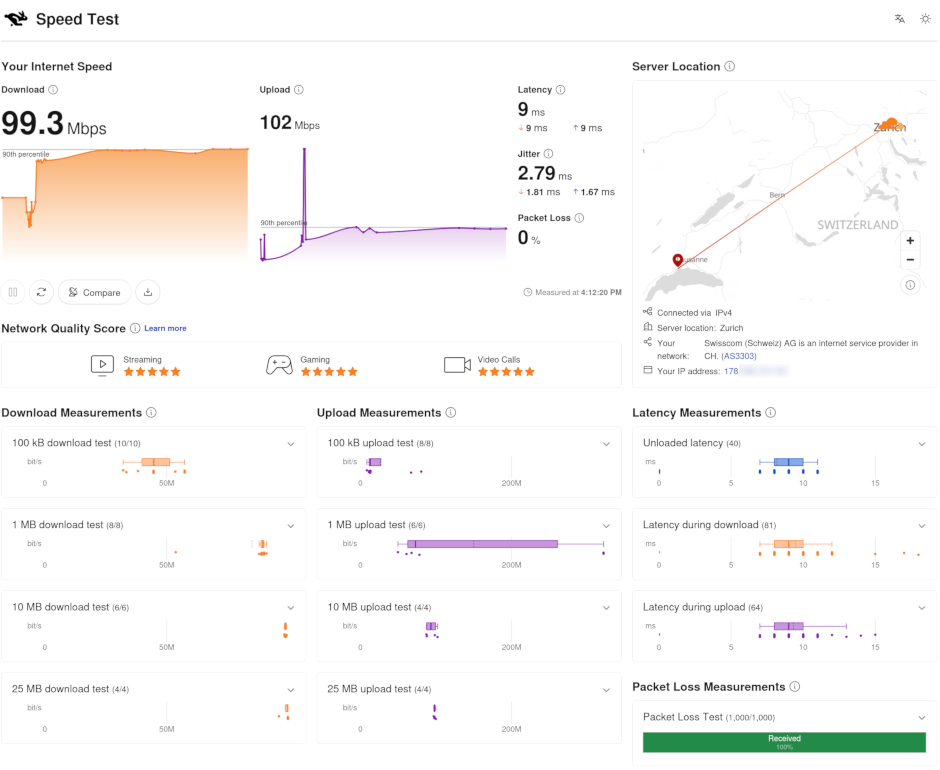
Shortly put, navigate to the (simple) cnlab or the (highly technical) Cloudflare Speedtest pages and see whether you’re satisfied.
Given my 100Mbit/s subscription - why would anyone need more?!?… - I personnaly get a 99.3/102.0Mbit/s (90th percentile) download/upload speeds along 9/2.79ms latency/jitter readings. (which might not be representative of the stock performances, given my custom HFSC Traffic Control configuration… which I might - or might not - share with you one day).
## ON YOUR LAPTOP
nmcli connection delete "Swisscom-activation"
VOILÀ!!!
 Cédric Dufour (résumé, software, GitHub) Cédric Dufour (résumé, software, GitHub) |
Created with discount and markdown-rsync |